
- Published on
- •3 min read
Reverse-Engineering Car Dashcam: Unlocking Its Hidden RTSP Feed Without Flashing Anything
- Authors

- Name
- Pulathisi Kariyawasam
I got a Yantop dashcam a while back - sold as the Car DVR/Dash Camera Yantop - front and rear camera, records to an SD card, broadcasts its own Wi-Fi hotspot so you can pull it up on your phone through their app. The app works fine. But I didn't want the app. I wanted to point VLC at it directly, on my laptop, and see the live feed without opening a mobile app every time.
That "simple" want turned into my first real reverse-engineering project. No firmware dumping, no soldering, nothing destructive - just watching what the official app says to the camera over the network, and copying it. This post is that whole process: the dead ends, the wrong guesses, and what the packet capture actually proved once I stopped guessing.
The setup
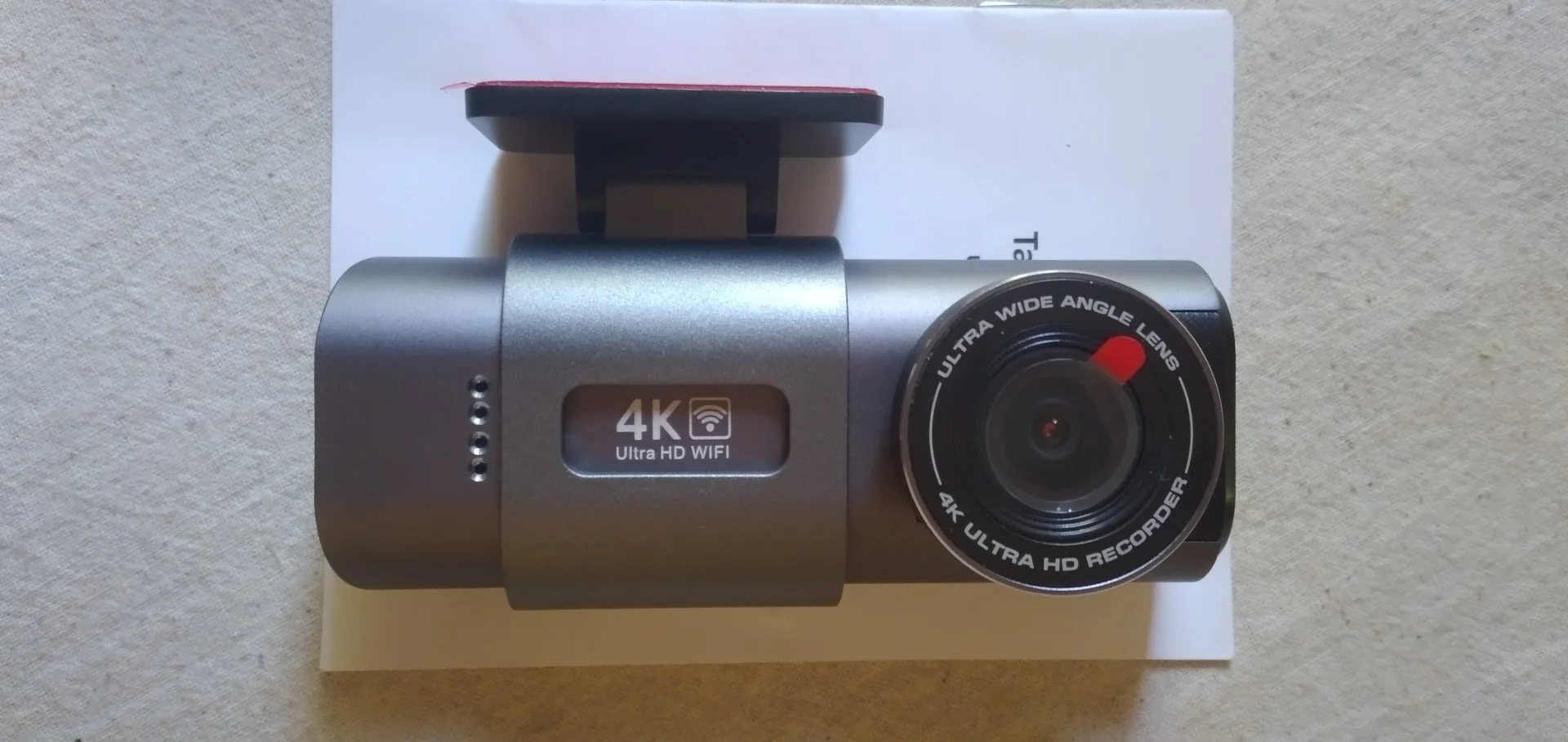
The dashcam creates its own Wi-Fi access point. I connected my laptop to it and checked what I got:
$ ip addr show
...
3: wlo1: <BROADCAST,MULTICAST,UP,LOWER_UP> mtu 1500 ...
    inet 192.168.169.2/24 brd 192.168.169.255 scope global dynamic noprefixroute wlo1
Laptop got 192.168.169.2/24, so the camera itself is almost certainly the gateway, 192.168.169.1. A quick ping confirmed it was alive and answering fast (a few ms - this is a device sitting right next to you, not something across the internet):
$ ping 192.168.169.1
64 bytes from 192.168.169.1: icmp_seq=1 ttl=255 time=7.34 ms
...
6 packets transmitted, 6 received, 0% packet loss
Step 1: nmap, and the first wall
Next obvious move - see what's actually listening on that device.
$ sudo nmap -p- 192.168.169.1
PORT     STATE SERVICE
80/tcp   open  http
5000/tcp open  upnp
Only two ports open. No RTSP by default, which is what I was hoping to find. I scanned the usual video-streaming suspects directly just to be sure:
$ sudo nmap -p 554,8554,10080,37777 192.168.169.1
PORT      STATE  SERVICE
554/tcp   closed rtsp
8554/tcp  closed rtsp-alt
10080/tcp closed amanda
37777/tcp closed unknown
All closed. So I tried the lazy route first - just guessing at common IP-camera URLs and firing them at VLC and curl:
$ vlc rtsp://192.168.169.1/live
[...] main stream error: connection failed: Connection refused

$ vlc rtsp://192.168.169.1/ch0
[...] connection failed: Connection refused

$ vlc rtsp://admin:[email protected]/live
[...] connection failed: Connection refused

$ curl http://192.168.169.1/stream/video
{result: 98}
$ curl http://192.168.169.1/videostream.cgi
{result: 98}
$ curl "http://192.168.169.1/stream?channel=1"
{result: 98}
Every guess either got refused outright (port genuinely closed) or came back with {result: 98} from the HTTP side - which I'd later realize is this camera's generic "no idea what you're asking for" response. Guessing wasn't going to get me anywhere. If the stream existed, the official app had to know something I didn't.
Step 2: sniffing the app instead of guessing
If the app can see the stream and I can't, the answer is in what the app sends - not in guessing URLs. So instead of poking the camera, I pointed a packet capture at the phone.
I used PCAPdroid on my Android phone. It captures per-app network traffic using Android's local VPN API - no root needed, which matters because rooting my daily phone just for this wasn't worth it. I connected the phone to the dashcam's Wi-Fi, started a capture in PCAPdroid, and just used the official Yantop app normally: opened it, watched the front camera, switched to the rear camera, backed out.
Then I exported the .pcap from PCAPdroid and opened it in Wireshark on my laptop.
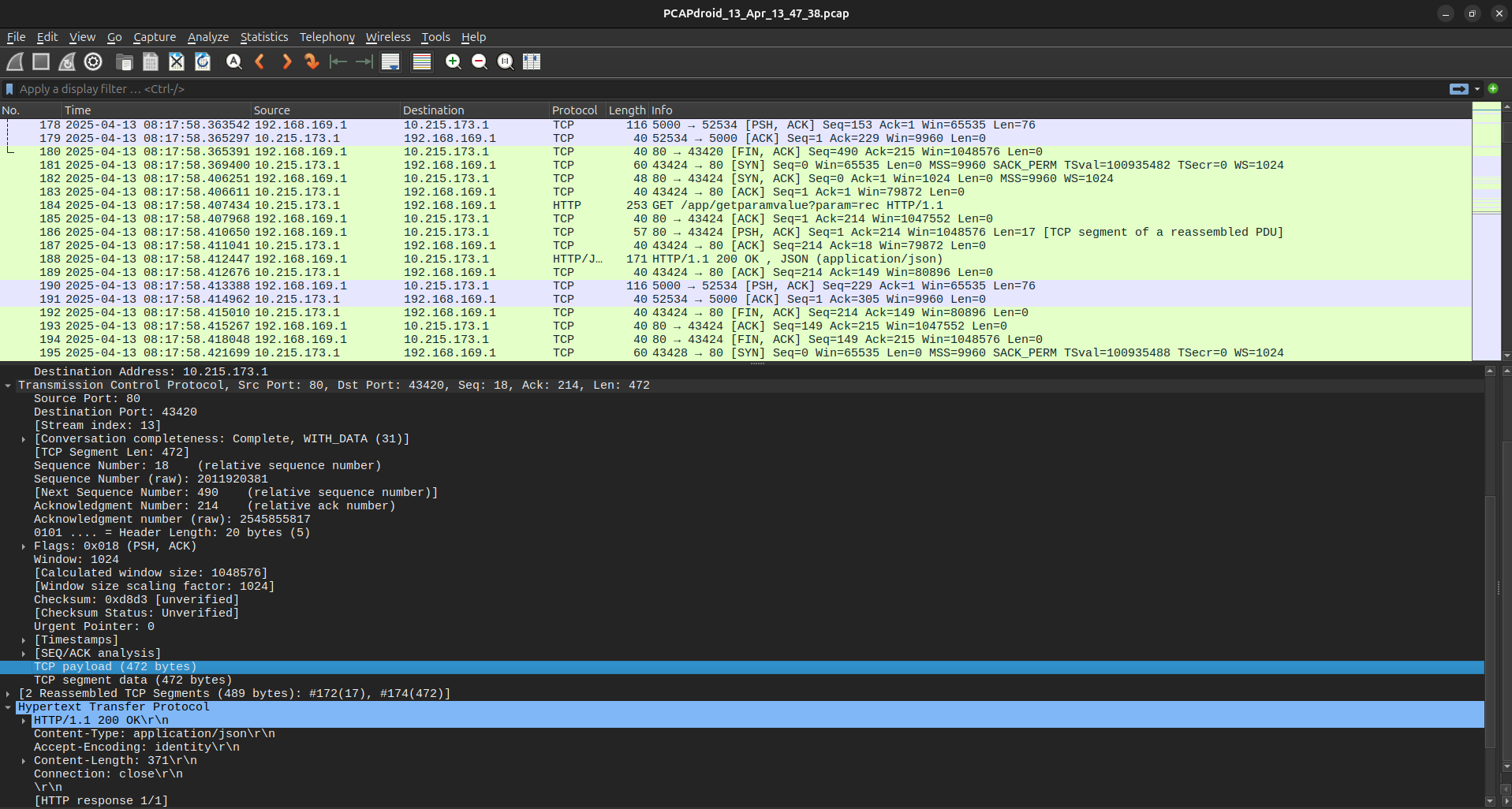
Step 3: what the app actually does on connect
Filtering the capture down to http in Wireshark showed something I wasn't expecting - the app fires off a burst of almost twenty HTTP requests the instant it connects, way before you even tap "view live." All of it hits a plain, unauthenticated REST API on port 80:
GET /app/getdeviceattr
GET /app/settimezone?timezone=5
GET /app/setsystime?date=20250413141327
GET /app/capability
GET /app/getproductinfo
GET /app/getdeviceattr
GET /app/getmediainfo
GET /app/getparamitems?param=all
GET /app/getstorageinfo
GET /app/getadasitems?param=all
GET /app/getsdinfo
GET /app/getparamvalue?param=rec
GET /app/getparamvalue?param=all
GET /app/getlockvideostatus
GET /app/getadasvalue?param=all
None of this needs a password or a token. Anything connected to the dashcam's Wi-Fi can just call these. A few of the responses were worth a proper look:
// GET /app/getdeviceattr
{"result":0,"info":{
  "uuid":"AFAQE502",
  "softver":"20240715.211638",
  "hwver":"V3.00-WIFI-ADAS-RC6-20220909",
  "ssid":"YantopCam-AFAQE502",
  "camnum":2,
  "curcamid":0
}}

// GET /app/getproductinfo
{"result":0,"info":{"model":"YantopCam","company":"FH","soc":"eeasytech","sp":"FH"}}

// GET /app/getstorageinfo  (no SD card in mine while testing)
{"result":0,"info":{"status":3,"free":0,"total":0}}
camnum: 2 confirms what I already knew from the hardware (front + rear), and curcamid: 0 tells you which one is currently active - that number becomes important later. One request quietly failed with the generic error too:
// GET /app/settimezone?timezone=5
{ "result": 98 }
Even the official app doesn't get a clean response from every endpoint it calls. Good reminder that "the vendor's own app does it" doesn't mean "this call actually works."
Then there's /app/getmediainfo, which is where it gets a little funny:
{ "result": 0, "info": { "rtsp": "rtsp://192.168.169.1", "transport": "tcp", "port": 5000 } }
The camera's own API tells you the RTSP stream lives on port 5000. That's wrong - or at least, it's not what actually happens, as I found out a few minutes later staring at the real traffic. Lesson from this project: trust the packet capture, not the device describing itself.
Step 4: the one request that changes everything
Buried in the middle of that burst was this:
GET /app/enterrecorder HTTP/1.1
Host: 192.168.169.1
Response:
{ "result": 0, "info": "enter recorder success" }
Nothing dramatic in the response. But right after this call, and only after this call, the app opens a brand new TCP connection to 192.168.169.1:554 and starts speaking RTSP. Before this request, port 554 is closed (my earlier nmap scan proved that). The camera keeps its RTSP server switched off until the app explicitly tells it to wake up - almost certainly to save power/bandwidth when nobody's watching. enterrecorder is the "wake up" call. Not port 5000 like getmediainfo claimed - port 554, plain RTSP, exactly where I originally expected it and where nmap said it was closed.
Step 5: reading the actual RTSP handshake
With the mystery of how to open the port solved, I followed the TCP stream in Wireshark for the port 554 conversation, and it's a completely standard RTSP negotiation:
OPTIONS rtsp://192.168.169.1:554 RTSP/1.0
CSeq: 1
User-Agent: Lavf57.83.100

RTSP/1.0 200 OK
Public: OPTIONS, DESCRIBE, SETUP, PLAY, TEARDOWN

DESCRIBE rtsp://192.168.169.1:554 RTSP/1.0
Accept: application/sdp
CSeq: 2

RTSP/1.0 200 OK
Content-Type: application/sdp

v=0
a=type:broadcast
a=control:*
m=audio 0 RTP/AVP 96
a=rtpmap:96 MPEG4-GENERIC/0/0
a=control:track1
m=video 0 RTP/AVP 97
a=rtpmap:97 H264/90000
a=fmtp:97 profile-level-id=640033;packetization-mode=1;...
a=control:track2

SETUP rtsp://192.168.169.1:554/track1 RTSP/1.0
Transport: RTP/AVP/TCP;unicast;interleaved=0-1
CSeq: 3

RTSP/1.0 200 OK
Session: 796886824
Transport: RTP/AVP/TCP;unicast;interleaved=0-1;

SETUP rtsp://192.168.169.1:554/track2 RTSP/1.0
Transport: RTP/AVP/TCP;unicast;interleaved=2-3
CSeq: 4
Session: 796886824

RTSP/1.0 200 OK
Session: 796886824
Transport: RTP/AVP/TCP;unicast;interleaved=2-3;

PLAY rtsp://192.168.169.1:554 RTSP/1.0
Range: npt=0.000-
CSeq: 5
Session: 796886824

RTSP/1.0 200 OK
Right after that last 200 OK, the raw video starts flowing as $-framed binary chunks on the same TCP connection - no separate RTP/UDP ports at all. This detail is exactly why my earlier blind attempts with plain VLC or a naive ffmpeg call never worked, even once I knew the port: the app is using interleaved TCP (RTP/AVP/TCP), so the client has to explicitly ask for that in the SETUP request. Two tracks: track1 is AAC audio, track2 is H.264 video - that's the one I actually want.
Step 6: the rear camera - and getting it wrong the first time
Here's the part worth being honest about, because it's the most useful lesson from this whole project.
My first working script for the rear camera guessed at a /track3 path and a made-up /app/setview?camera=rear endpoint, based on how a lot of cheap IP cameras are laid out. It seemed to work well enough in my early testing that I didn't question it further and wrote it into my notes as fact.
Then I captured a second session where I actually switched to the rear camera inside the official app mid-recording, and re-checked it against the real traffic. The truth was different from my guess:
GET /app/setparamvalue?param=switchcam&value=1   → switches to rear
GET /app/setparamvalue?param=switchcam&value=0   → switches back to front
Right after calling switchcam, the app tears down the RTSP session and opens a completely new one - fresh OPTIONS → DESCRIBE → SETUP → PLAY, with a new session ID (796898824 instead of 796886824). And the DESCRIBE response is identical both times: still just track1 (audio) and track2 (video). There is no track3. Whichever physical sensor is currently active just gets remapped onto the same track2 video path.
So my original rear-camera script only "worked" by accident, or I'd tested it in a state where it didn't actually matter. The real mechanism is: call switchcam, wait for it to take effect, then open a fresh RTSP session against the same paths - not "connect to a different track." I wouldn't have caught this without going back and diffing two real captures against each other instead of trusting the first one that produced a picture.
Step 7: one more surface I didn't fully explore
While going through the capture I also noticed a playback mode:
GET /app/playback?param=enter
GET /app/getfilelist?folder=loop&start=0&end=99
GET /app/getfilelist?folder=park&start=0&end=99
GET /app/getfilelist?folder=event&start=0&end=99
GET /app/getfilelist?folder=emr&start=0&end=99
GET /app/getfilelist?folder=race&start=0&end=99
GET /app/playback?param=exit
This looks like exactly what it sounds like - listing recorded clips by category (loop recording, parking mode, event/impact recordings, emergency, "race" mode) directly over HTTP, probably followed by a download URL for each file. In my case every folder came back as {"result":0,"info":[]} because I didn't have an SD card in the unit at the time, so I never got to see what a populated response or the actual download step looks like. That's an obvious next thing to dig into - pulling recorded footage off the camera over Wi-Fi without touching the SD card at all.
Step 8: putting it together
Once the sequence was confirmed, automating it was the easy part. I use ffmpeg as a middleman instead of pointing VLC straight at the RTSP URL - IoT RTSP implementations like this one tend to be finicky about client behavior, and ffmpeg -rtsp_transport tcp reliably speaks the same interleaved-TCP dialect the app uses, then relays a clean local feed over UDP that VLC can open without any negotiation of its own.
Front camera:
#!/bin/bash
# Wake the camera's RTSP server
curl -s http://192.168.169.1/app/enterrecorder
sleep 1

# Pull track2 (video) over TCP and relay it locally
ffmpeg -rtsp_transport tcp -i rtsp://192.168.169.1:554/track2 \
  -map 0:v -c:v copy -an -fflags +genpts \
  -mpegts_m2ts_mode 1 -mtu 1316 -f mpegts udp://127.0.0.1:1234?pkt_size=1316 &

vlc udp://@127.0.0.1:1234 --udp-caching=1000
Rear camera (corrected - no track3, no setview, just switchcam):
#!/bin/bash
# Wake the camera and switch the active sensor to rear
curl -s http://192.168.169.1/app/enterrecorder
curl -s "http://192.168.169.1/app/setparamvalue?param=switchcam&value=1"
sleep 1

# Same track2 path - switchcam changes what's feeding it, not the path
ffmpeg -rtsp_transport tcp -i rtsp://192.168.169.1:554/track2 \
  -map 0:v -c:v copy -an -fflags +genpts \
  -mpegts_m2ts_mode 1 -mtu 1316 -f mpegts udp://127.0.0.1:1234?pkt_size=1316 &

vlc udp://@127.0.0.1:1234 --udp-caching=1000

# switch back to front when done:
# curl "http://192.168.169.1/app/setparamvalue?param=switchcam&value=0"
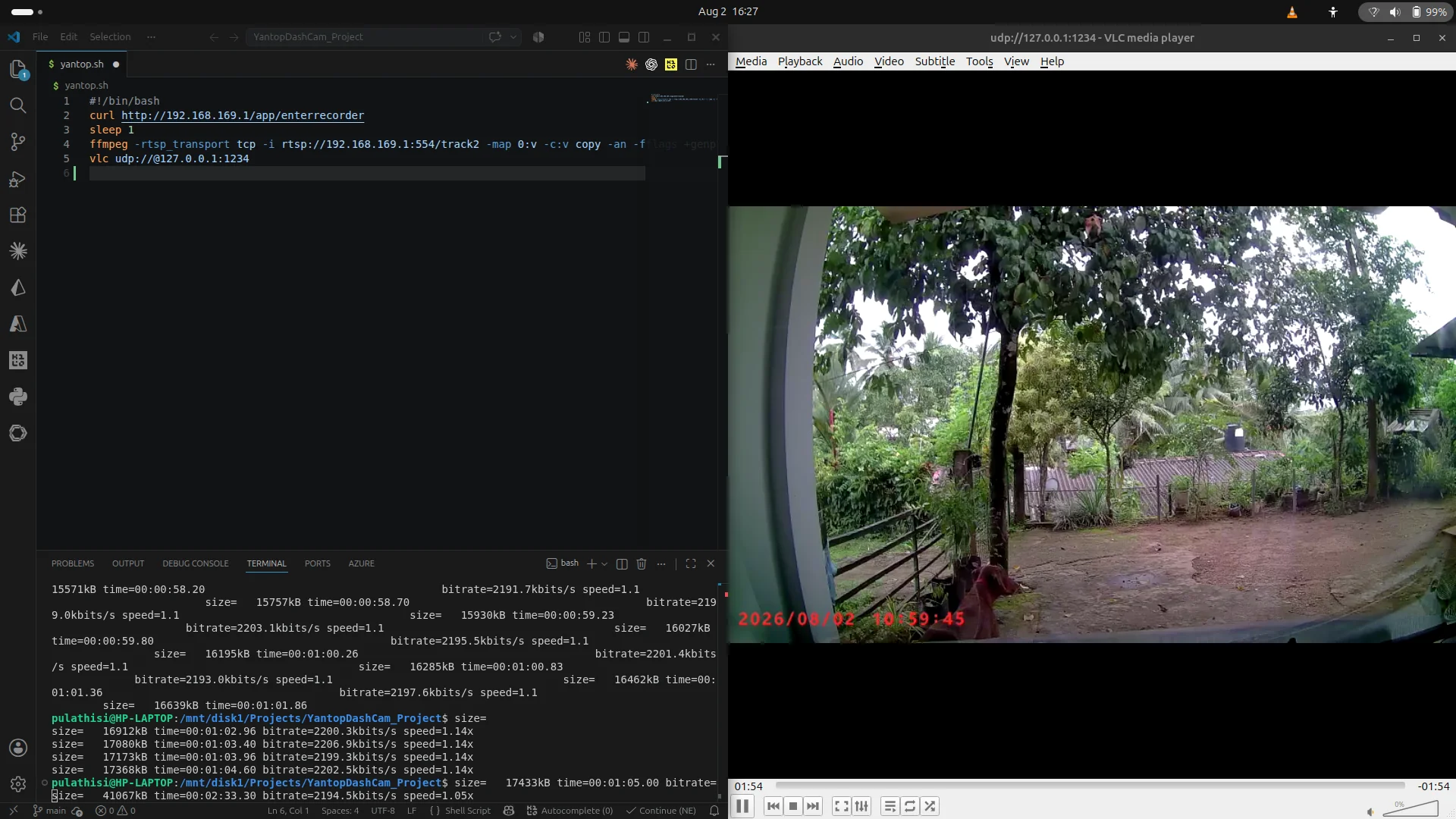
Run either one, and VLC pops open a low-latency live feed straight from the dashcam. No app, no phone, no flashing anything.
What this actually taught me about security
Getting the stream working was the fun part, but the more useful takeaway for me was everything sitting around it:
- There's no authentication anywhere on this local API. Every single
/app/...endpoint - device info, settings, recorded file listings, waking up the live stream - answers to anyone on the Wi-Fi network, no login, no token, nothing. The only thing standing between "just a viewer" and "full control of the camera" is whether you know the Wi-Fi password and the URL shape. - "The port is closed" isn't the same as "the feature doesn't exist." RTSP looked completely absent from the outside. It was one unauthenticated HTTP call away from being wide open.
- Undocumented isn't the same as protected. Nothing here is encrypted, signed, or access-controlled - it's just not written down anywhere public. That's obscurity, not security, and it fell apart with a single packet capture from a normal, unrooted phone.
- Verify twice before you trust a working result. My rear-camera guess (
track3+setview) produced a picture and I almost left it at that. It took a second, deliberate capture to catch that the real mechanism was something else entirely.
To be clear about scope - everything here was done against hardware I own, on its own isolated Wi-Fi access point, using nothing but a phone-side packet capture and standard tools (nmap, Wireshark, curl, ffmpeg). No firmware was touched, nothing was flashed, and this only works within Wi-Fi range of the device itself - it's not remotely exploitable over the internet.
This was my first proper reverse-engineering exercise, and it's exactly the kind of hands-on grounding I wanted for the security side of things - reading raw protocol exchanges instead of just reading about them. Next on the list: actually testing the strength of that Wi-Fi AP's own credentials, and following through on the getfilelist/playback API to see what pulling recorded clips off it looks like.